 4 Player Game Hub
Slotcar
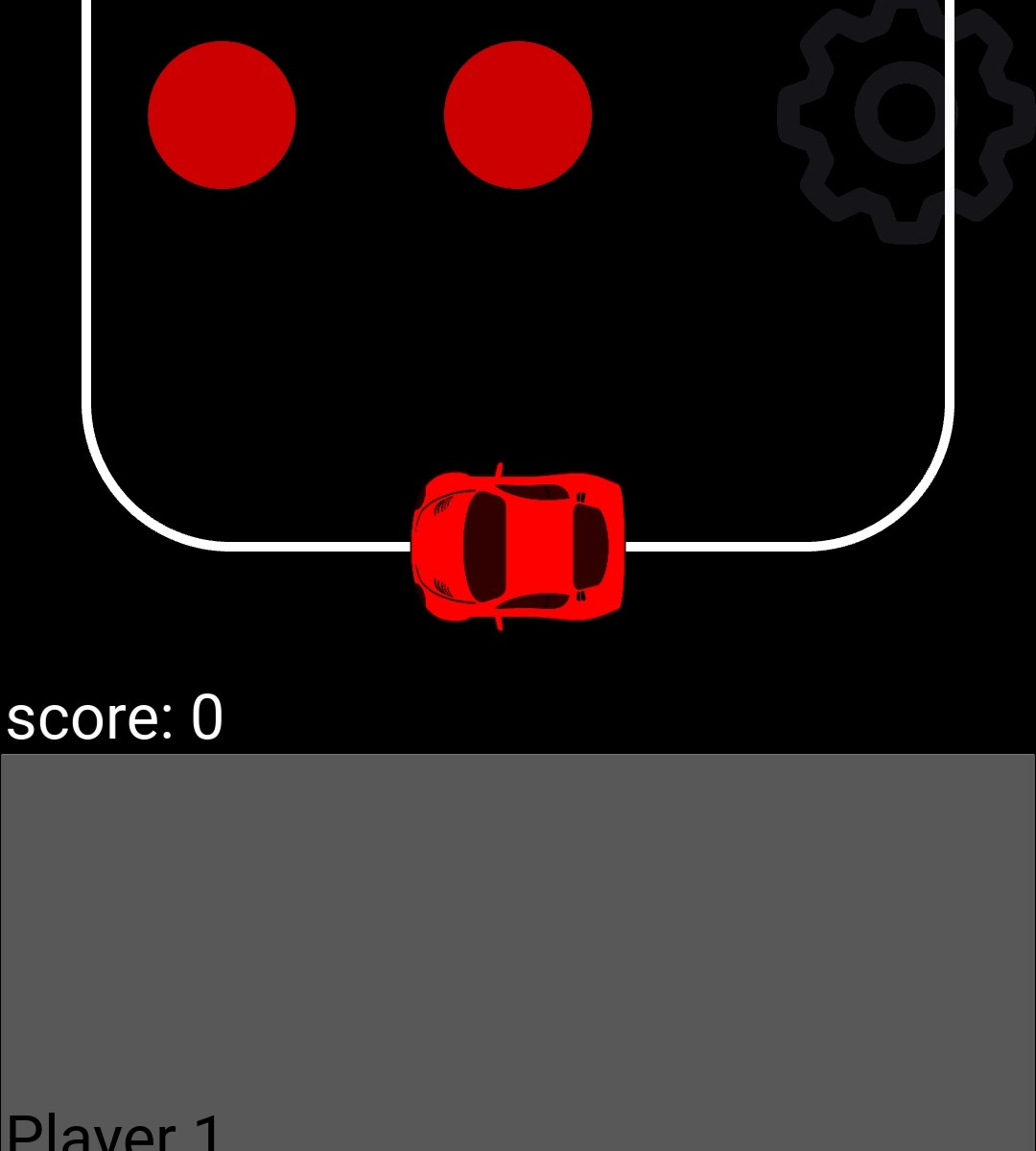 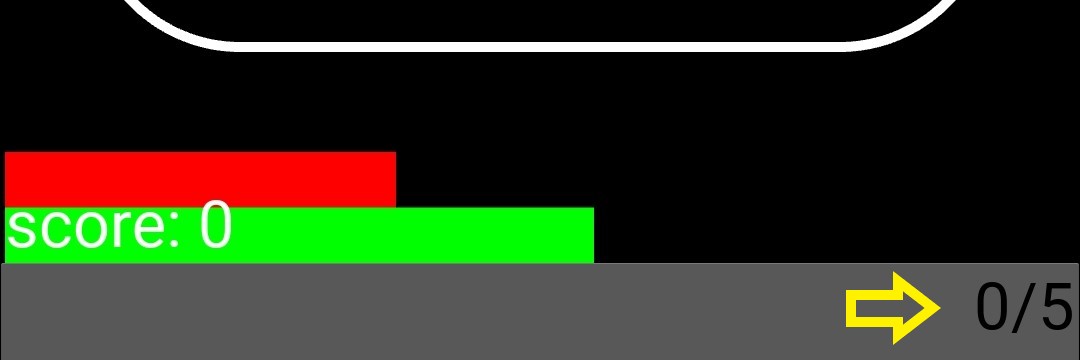 |
The goal of this game to be the fastest around the track. The first player who crosses the finish line (meaning having done the specified number of laps) is awarded a point. Your button is your pedal. Hold the button to accelerate your car, lift your finger to decelerate again. Your speed is visualised by the green bar abve your button (see lower picture above). The red bar is filled when moving too fast through the corners. Once it reaches its maximum amount you have lost control over your car. It will then be spinning at the point where you have lost control for a few seconds. After that you can start racing again. In one of the top corners you can see how many of the needed laps you have already done (highlighted by the yellow arrow in the lower picture above), in this case zero laps out of five.
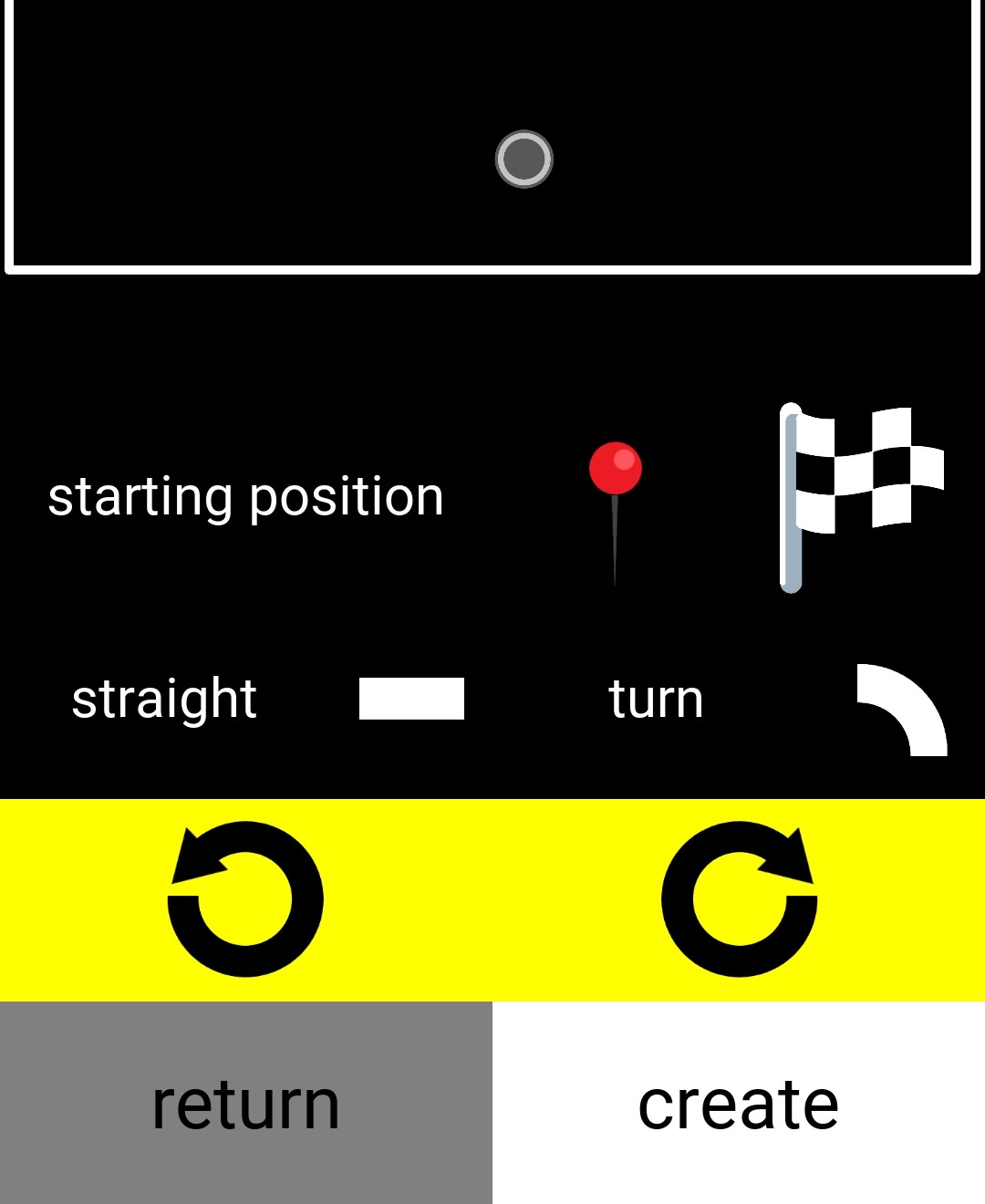
By default there is one track available. You can create your own tracks. The track you race on is then randomly selected from your custom ones and the default one. Where you find the option to create a new track is described in the local files. When starting to create a track u will encounter a ‘blank’ screen with certain options available (see picture below). The dark grey dot with a lighter grey circle around it at the top of the picture below marks your starting point. You can freely move it around at your screen to choose where you want to start.
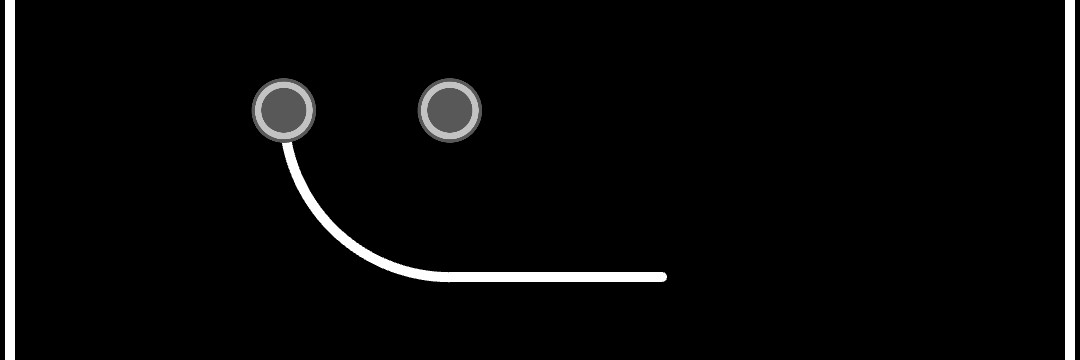
The buttons ‘straight’ and ‘turn’ create the next track segment. The first segment has to be a straight. When created the grey button will jump to the end of the straight and you can modify its length by moving it back and forth. After each straight you can only select a turn as your next segment. You now have two buttons to modify your turn (see third of the pictures below). One controls the center of the turn viewing it as part of the circle, the other one controls how far on this circle you want the turn to go. By default it is a right turn, you can make it a left turn by moving the button controling the center to the other side of the straight. After each turn the next segment has to be a straight again. If you would like to add another turn (for example with a smaller radius or turning in the opposite direction) you can achieve this by modifying the straight’s length to zero.
Each track has to feature four possible starting positions. These can be only created on straights and by pressing the “starting position” button and will be visualised with a red pin as can be seen in the fourth picture below. You can also undo and redo each track segment by pressing the left and right of yellow buttons with the circular arrows respectively. Your undone track segments will be stored until you create a new one.
    |
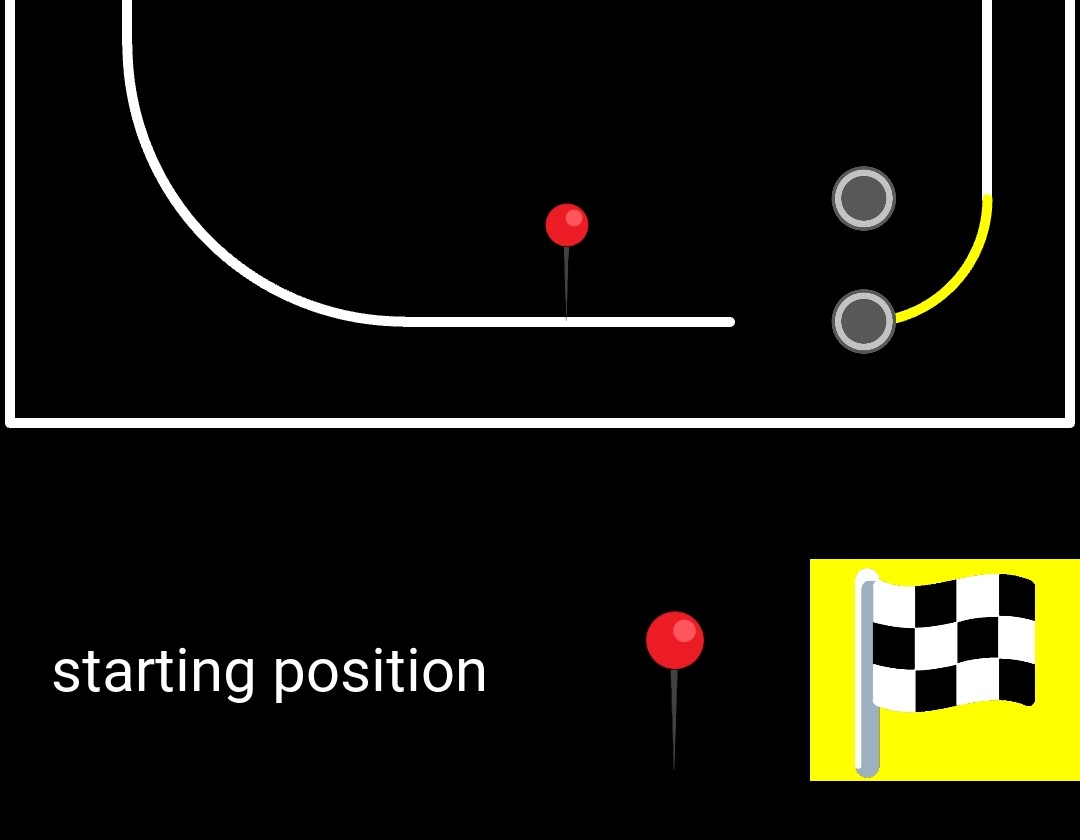
When you are set and done with your track and want to finish, this can be done when chosing a turn as your last segment. As indicated in the picture below you have to make sure that the end of the turn has the same angle and is on the same level as your starting straight. When being the case the turn will be coloured in yellow and the button with the checkered flag as well. Now press the button with the checkered flag and the track will get completed by extending the starting straight back to your last turn. The whole track yill then be coloured in yellow.
  |
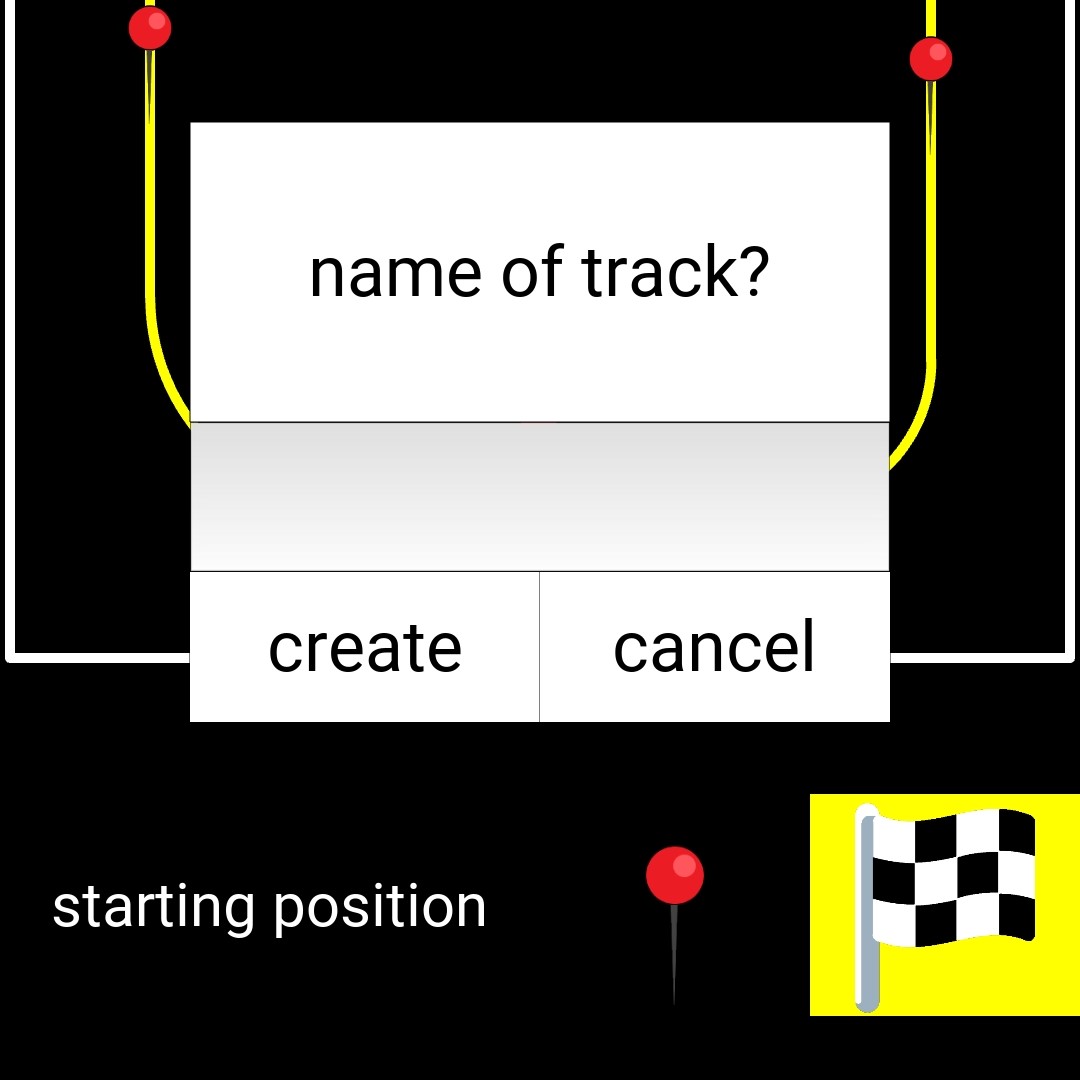
You can then create your track by pressing on the “create” button. A textfield will pop up where you can type in a name for the track. Be aware that an existing track with the same name will be overwritten!
 |
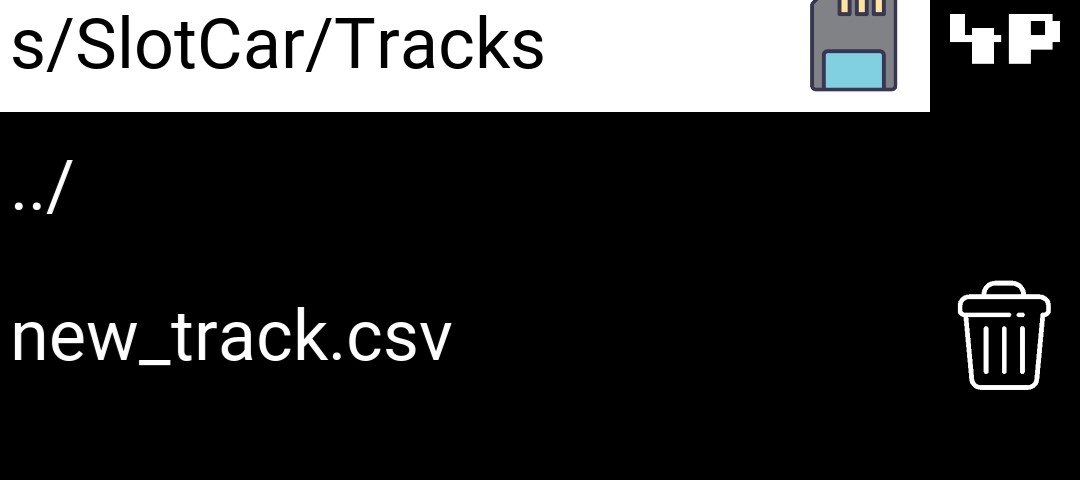
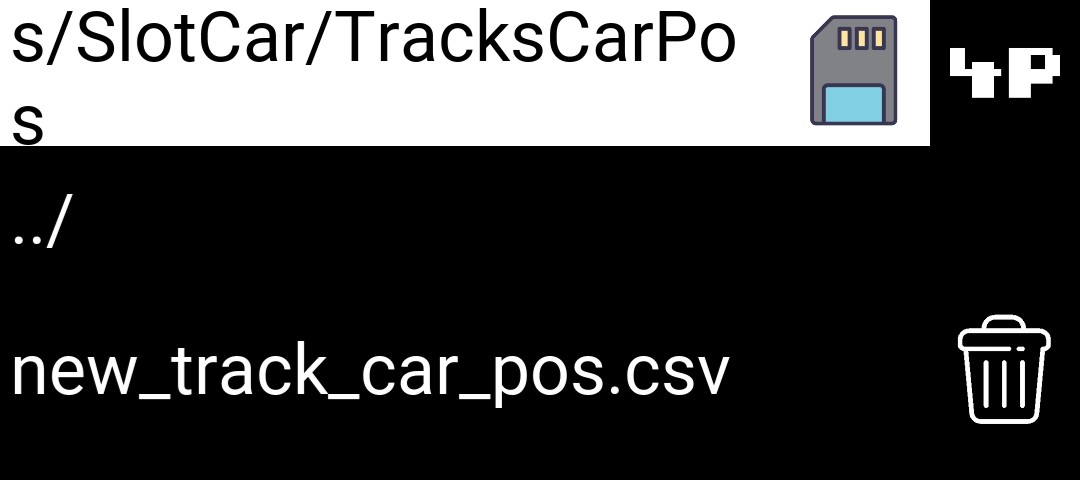
Your track files will then be stored in the directories as described in local files.
  |
Prior to the game the description visible on the screen is the following.

list of customisable parameters:
- number_of_rounds
- number_of_laps
|
|
|
|