 4 Player Game Hub
Docs
1. How To Play
2. Customisation
3. Explorer
4. Error
1. How To Play
This is a documentation about how to use the app. You will be guided through every screen you will encounter. After starting the app you will see the loading screen.
 |
Once the app is loaded the starting screen appears.
 |
Pressing “get started” will switch to the main screen. There you can set the number of players (up to 4) and the number of games you want to play. Tapping on the top (as highlighted in the picture below) you can switch between the two modes ‘random’ and ‘manual’.
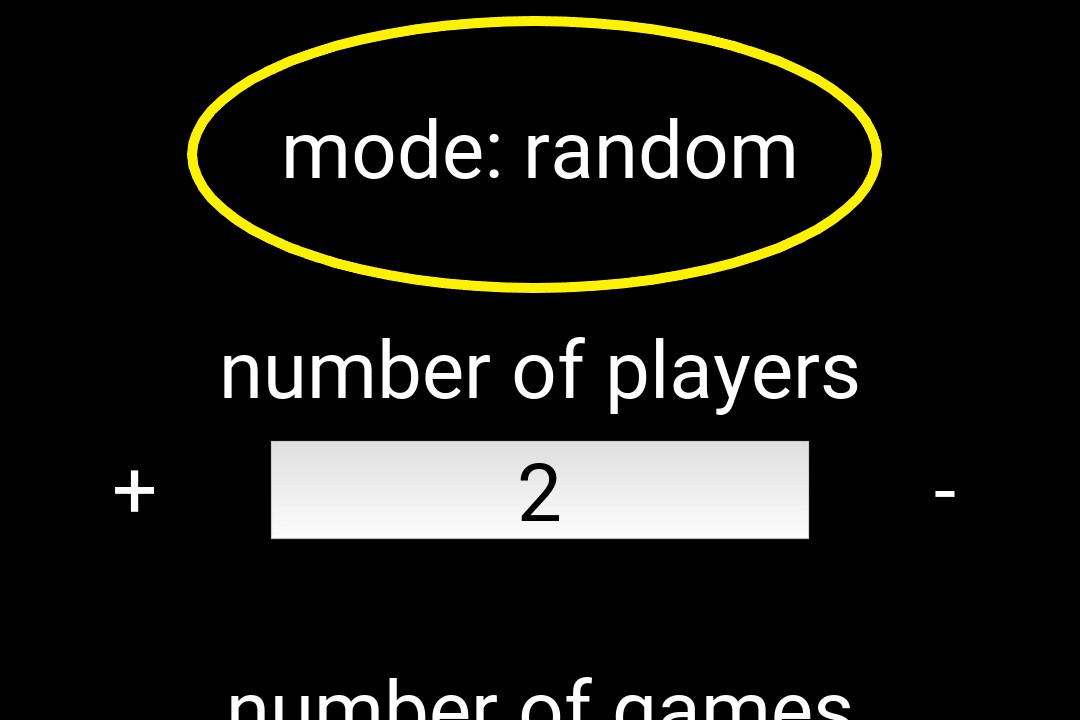 |
When choosing ‘manual’ you can select the games you want to play, when ‘random’ it will be selected randomly for you.
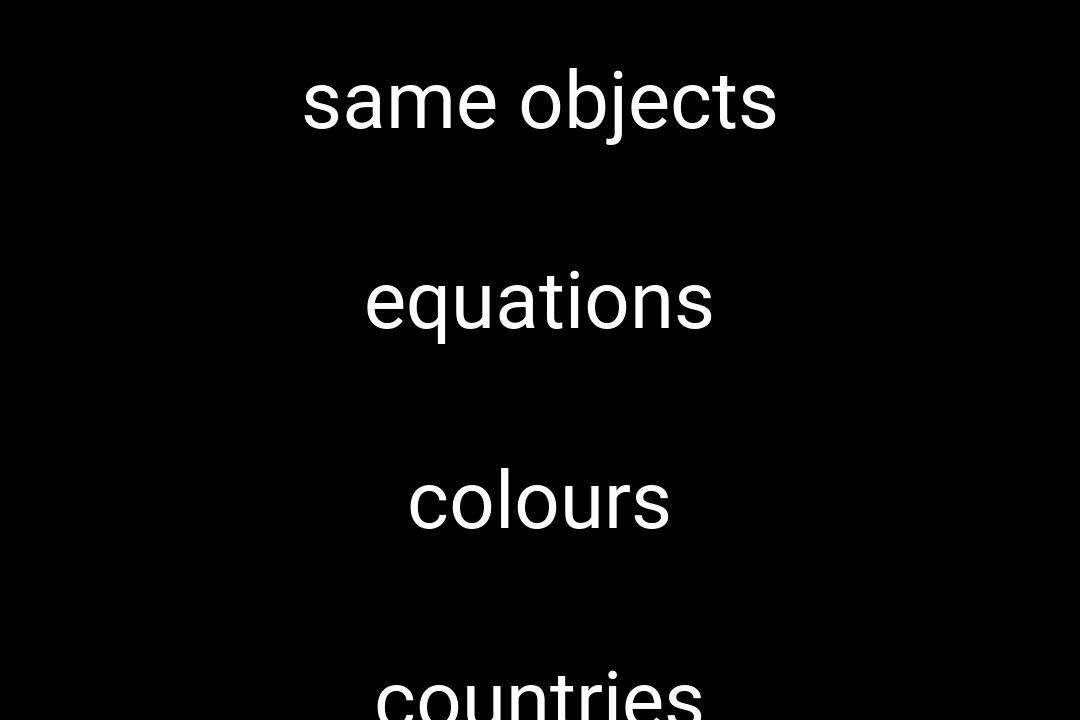
When starting the game and having selected ‘mode: manual’ you will be directed to the screen where you can choose the next game to play.
 |
After selecting a game you will be redirected to the game screen. Before / between all games there will be a descirption of the game displayed with some information about it.
  |
Ready up by pressing your button. Once all players are ready the game starts.
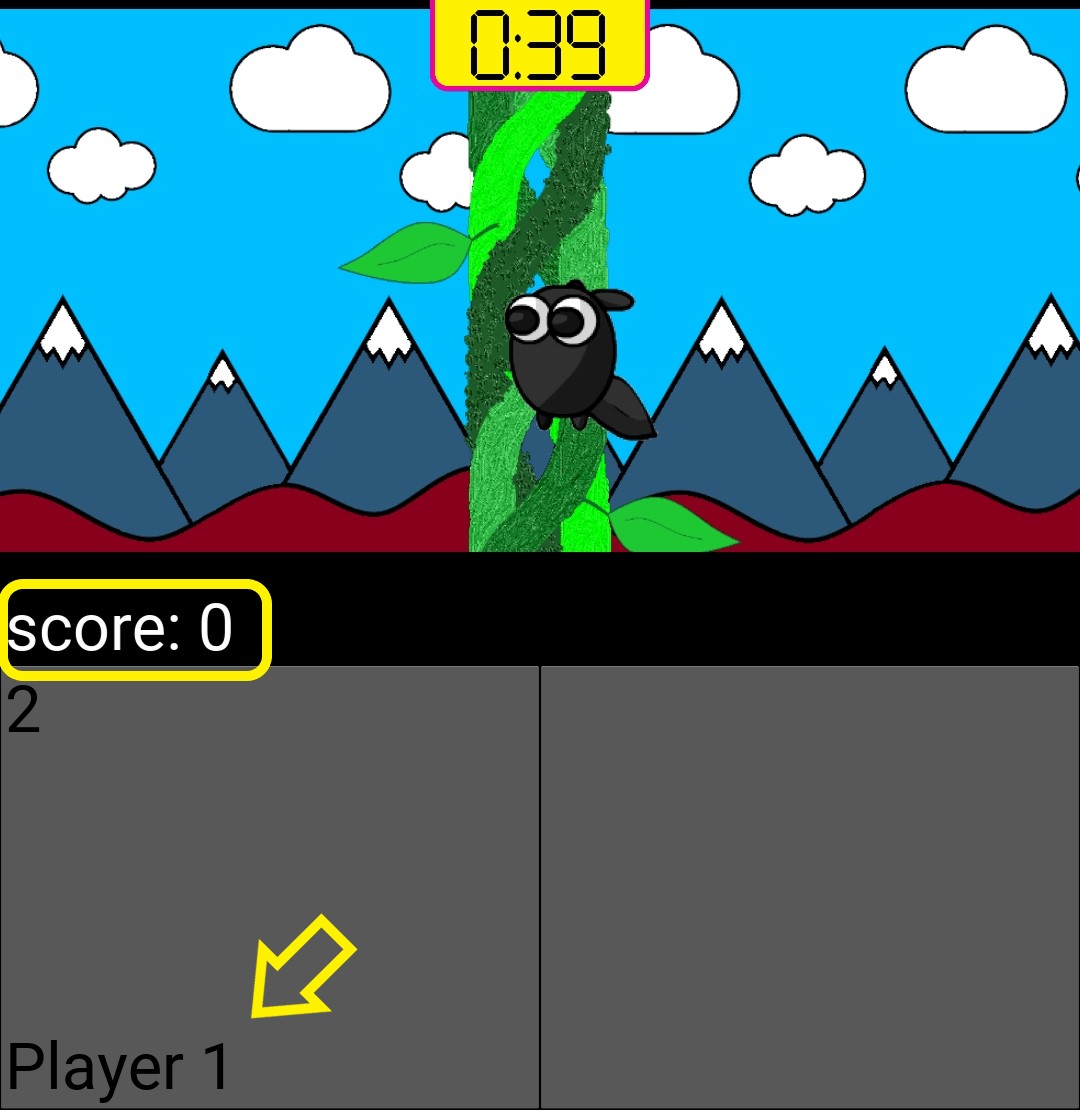 |
Visible on the screen is each players current score (higlighted by the yellow rounded rectangle) and name (highlighted by the yellow arrow).
Here you can find a list of all games.
After having played the number of games as chosen in the setting you will be directed to the winner screen where u can see the placement of each player.
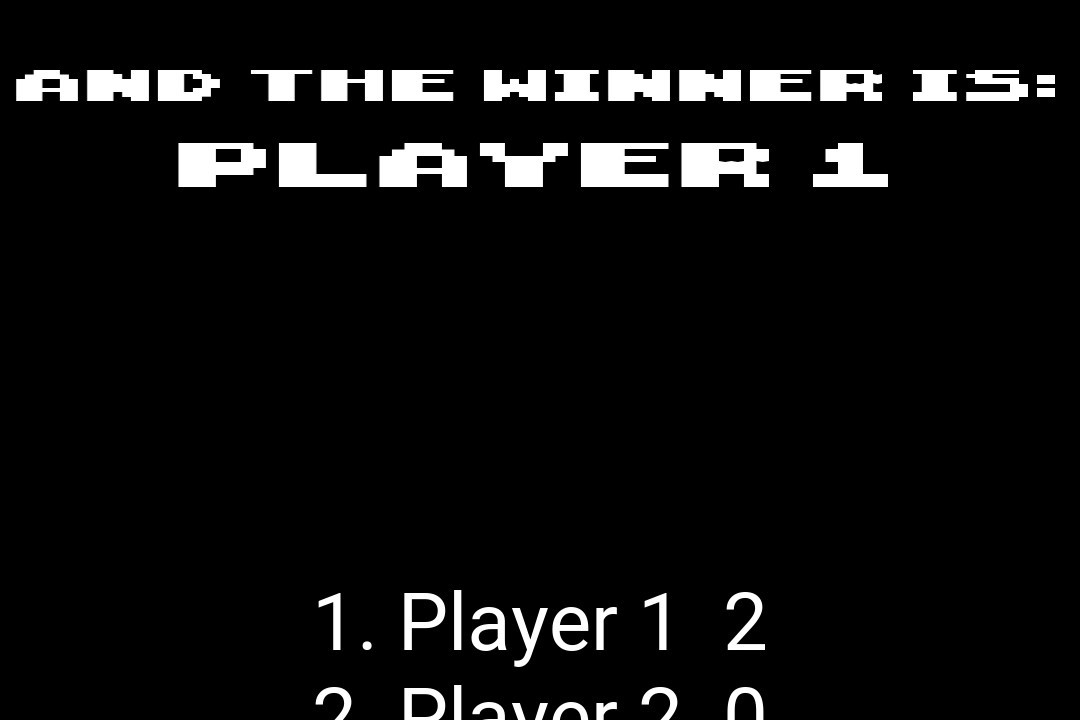 |
Tapping on the screen will guide u back to the main screen. You can quit the game in advance by pressing the transparent cog wheel (highlighted by the yellow rounded rectangle in the picture below).
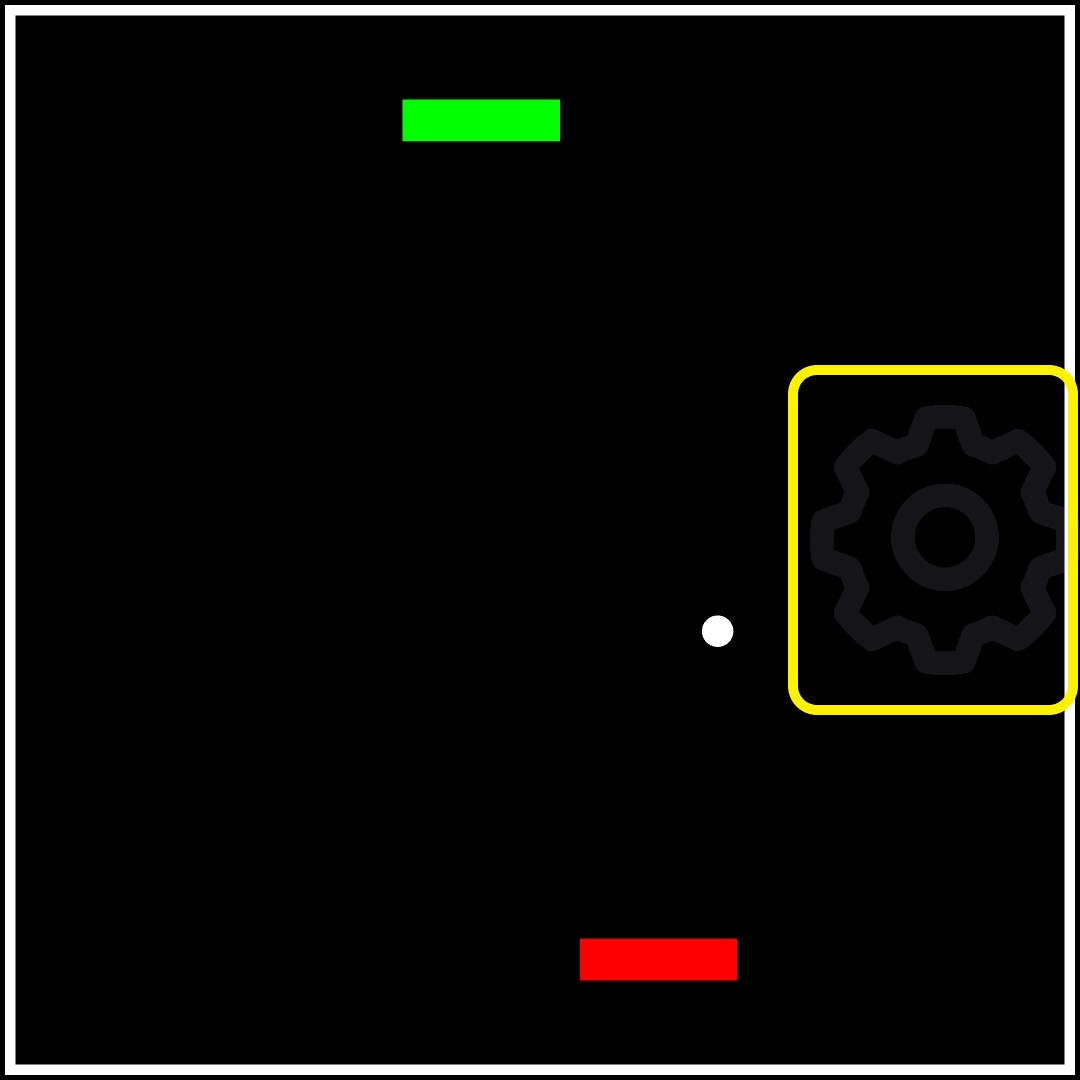 |
This will also direct you to the winner screen.
2. Customisation
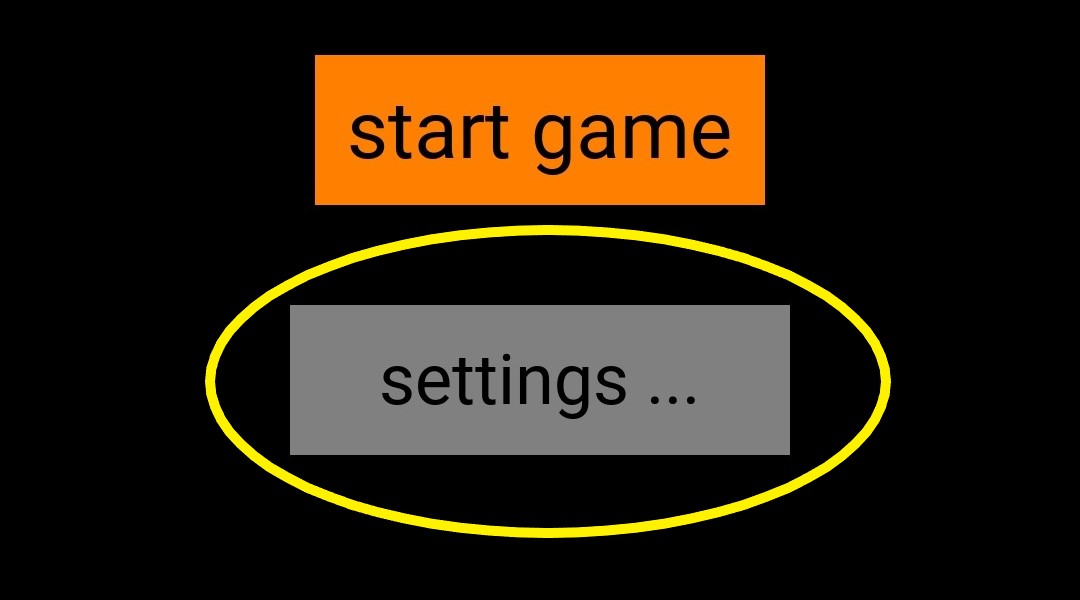
Before starting a game you can customise the parameters of the games. Press “settings” as highlighted in the picture below.
 |
This will lead you to the next screen where all the available games are listed. With the “return” button you can return to your main screen.
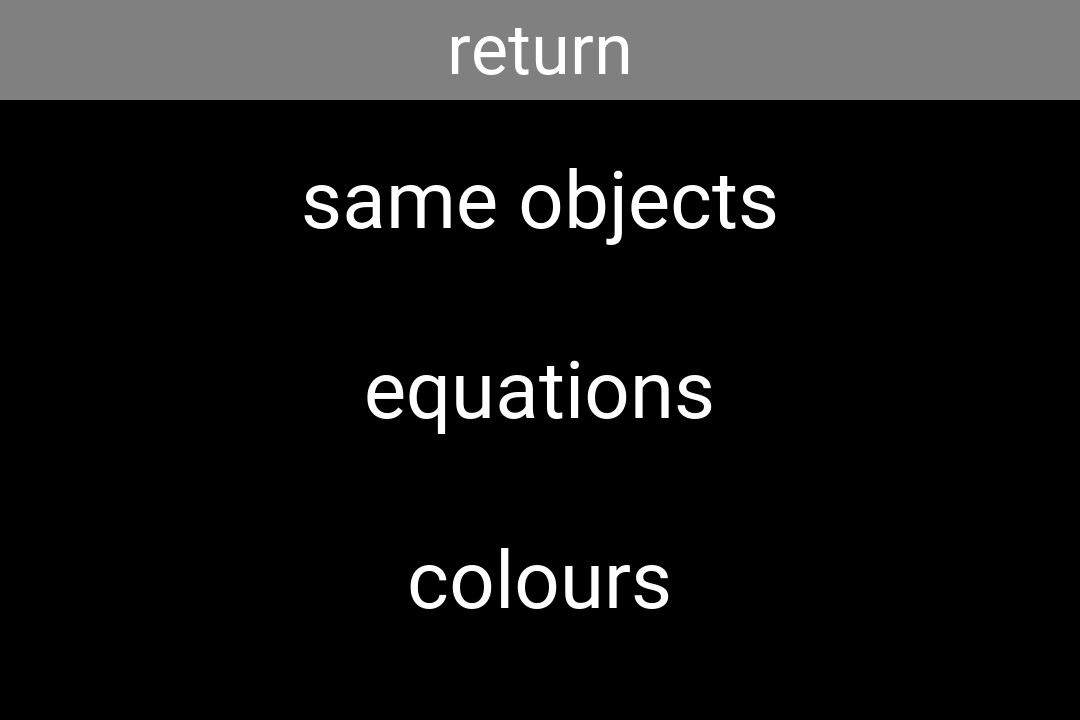 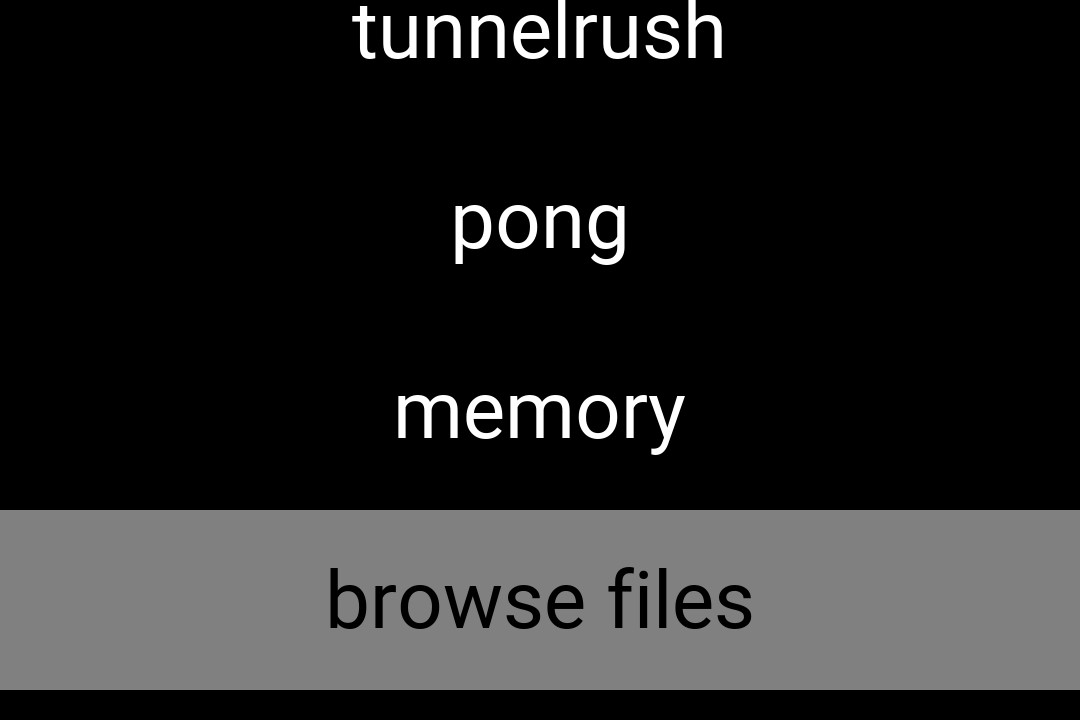 |
Here you can choose the game you want to customise. Pressing one of those buttons will direct you to a screen where all the customisable parameters for the game and their current values are listed.
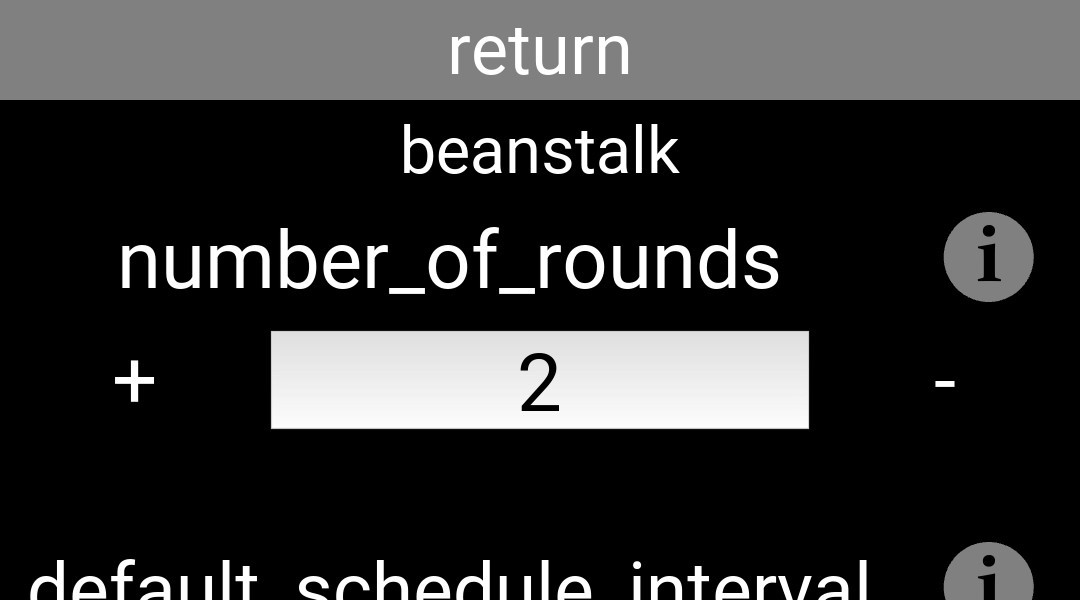 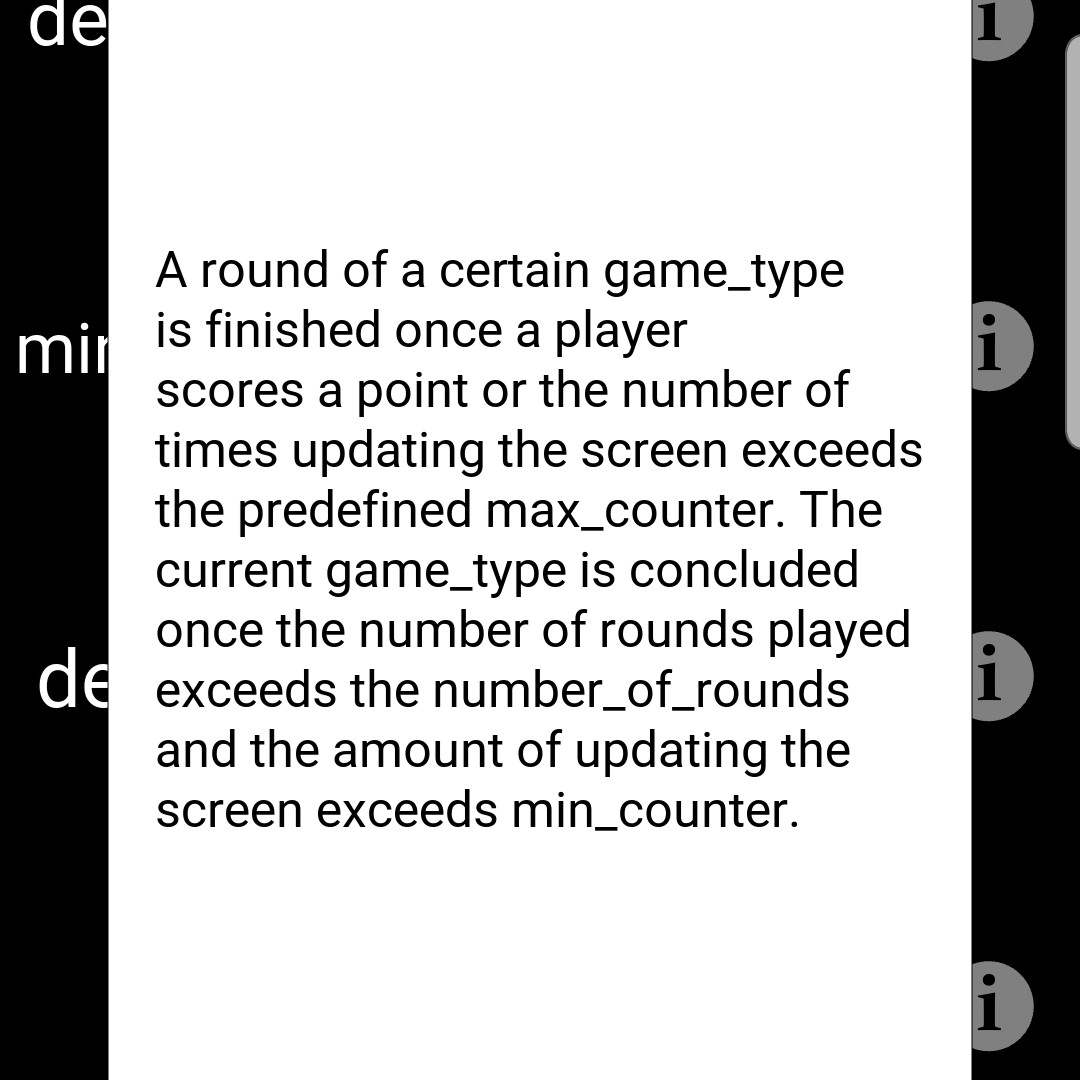  |
At the top of the screen there is a return button which will redirect you back to where all the available games are listed. Right below, the name of the game you want to customise is displayed. Each parameter can be altered by either pressing the ‘+’ and ‘-‘ buttons or by directly typing a number. Clicking on the ‘i’ icon will open up a text giving a detailed description for the purpose of the parameter (as can be seen in the second picture above; there you can see the description for the parameter ‘number_of_rounds’). You can save all your changes by pressing “submit changes”. In case the whole list of parameters and the sumbit button do not fit to the screen you can scroll up and down to make the rest visible.
Here you can find a list of all customisable parameters and a detailed description of their purposes.
Some games are even further customisable. When pressing on “browse files” in the settings screen a built-in explorer opens. The customisation options are explained under ‘local_files’.
3. Explorer
4. Error
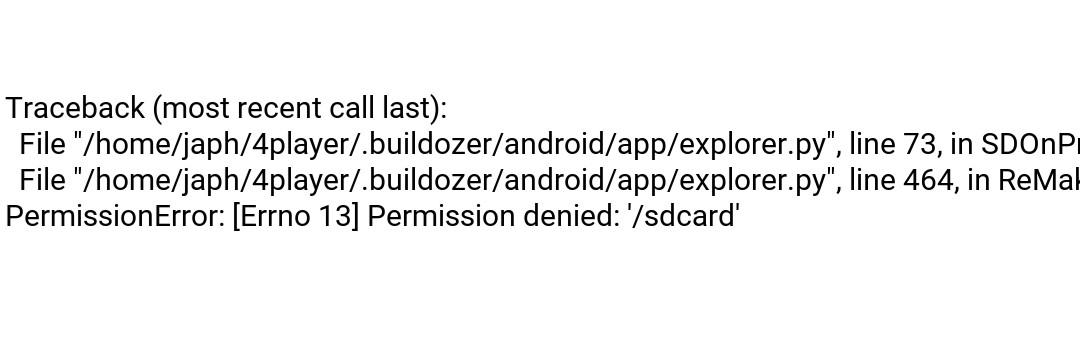
When an error occurs you will be redirected to the error screen where the corresponding traceback will be displayed (see picture below). There are two types of (handled) error. If the error is an expected one you can get back to the app by tapping on the screen. If the error is fatal you will have to restart the app. In any case the traceback will be stored in your local logs. If the app crashes by itself you will find the error message in your kivy logs.
 |