 4 Player Game Hub
Logs
There are two directories where logs can be found.
/data/data/org.muenz.fourplayer/files/app/.kivy/logs
/data/data/org.muenz.fourplayer/files/local_files/logs
Whenever the app crashes you can find the error logs in the first of these two directories. In such a case, please report this and contact us! How to properly report a bug is properly described below.
In the second directory two kinds of logs can be found. Whenever there is a problem with one of the games or the app itself which we are not experiencing ourselfs when testing, logging for the specific area will be enabled temporarily. (This will usually require an update of this app.) The corresponding logs will be of the form NAME_TIMESTAMP.txt where NAME is either the one of the game or a part of the app (see picture below). In this case too sending us these logs as described below is highly appreciated.
In this directoy there are also error logs stored. Whenever a fatal error is fetched which would have resulted in the app to crash, you will be directed to a screen where the error message is displayed. The same error message will be stored in the second directory and the file is of the form TIMESTAMP.txt. In such a case, please report this and contact us!
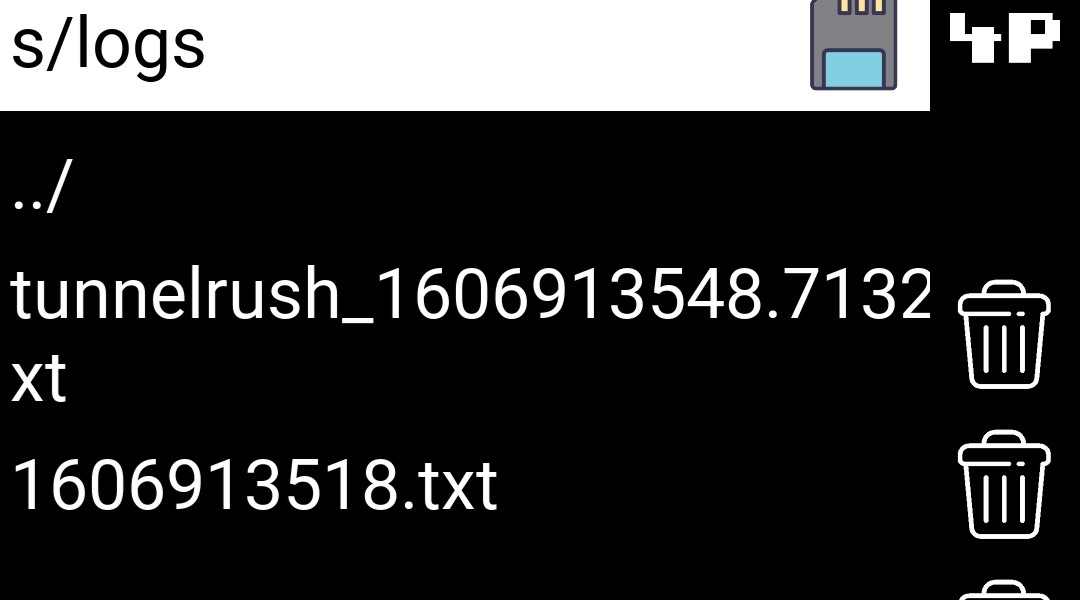 |
How to report a bug.
When reporting a bug, please make sure to give a short description of what has happened (for example at what part of the app the error occured; when during playing a game, then the name of the game) and to include the error message in the Message block of the contact form. In the second next paragraph there is a description of how to transfer the log file to your computer so that you can simply copy and paste the error message.
In the other case when logging is enabled for a certain part of the app and you want to report your logs, please make sure to not only include the log message but to also give some information about your device. It is recommended to also fill in an email in case we need further information to properly detect the problem.
If you want to access your log files via your computer you HAVE to follow these instructions. First, you need to open your phone’s directory on your computer. Navigate to the directory where your DCIM folder can be found. There you need to create a new folder with the name ‘my_logs’, all lower letters. You HAVE to use exactly this as your folders name, since by implementation this is the ONLY path where copying your logfiles to is permitted.
After this is done, open your app and navigate to the logs via the built-in explorer and copy the log files (it is possible to copy multiple files at once). For a detailed description how to copy files please read the docs. Make sure you have permitted the app to access your phone’s SD card. In Basic Bavigation there is a description on how to grant this permission. When you have copied all the logs you need for the report press the ‘SD card’ button and open the ‘my_logs’ folder. You can now copy your logs into this folder by pressing ‘COPY INTO THIS FOLDER’. Now these logs can be accessed from your computer.
|
|
|