 4 Player Game Hub
Basic Navigation
1. Basics
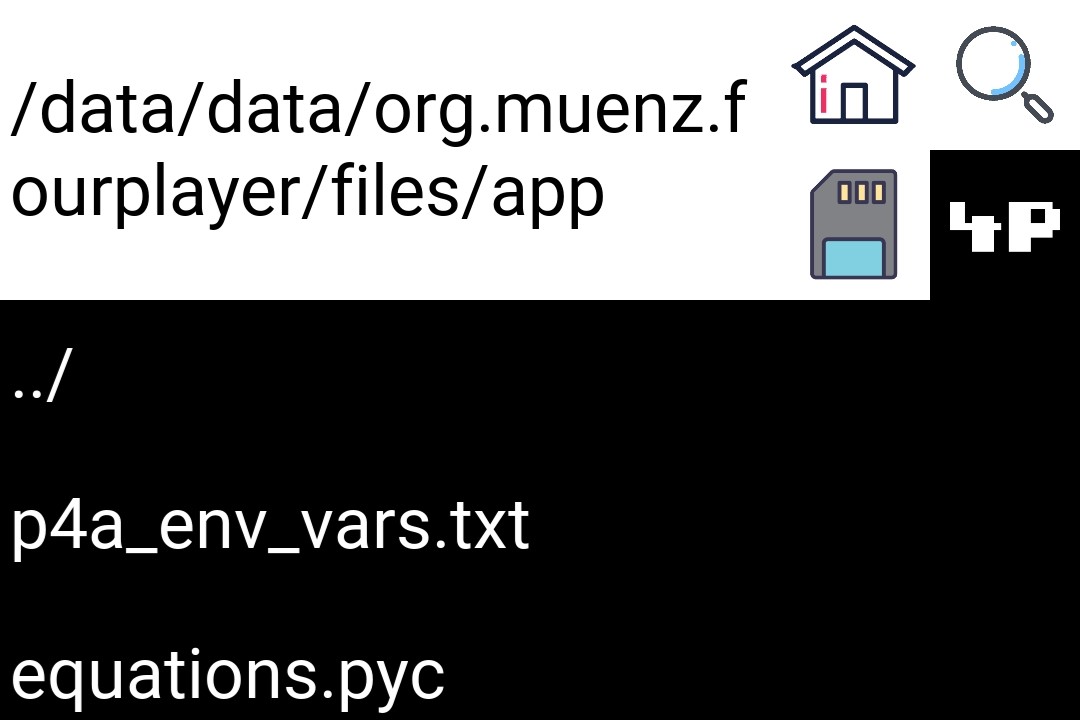 |
By default the entrypoint to the built-in explorer is:
/data/data/org.muenz.fourplayer/files/appThis is the path where all the files are stored on your android phone. Your current path is always displayed on the top next to the for symbols as can be seen in the picture above. The functionalities of the symbols are

|
The home button will always redirect you back to the entrypoint-path from above. |

|
Pressing this button will direct you to the path of your SD card. The permission to access your SD card has to be granted first. You can manage your permissions in your phone's Settings > Apps > 4 Player Game Hub > Permissions. Otherwise you will be directed to an (intended) error screen. In this case tapping the screen will get you back to the explorer. |

|
Pressing the search button will enable you to type in a custom path in place of the current directory. Pressing this button again will direct you to the path of your choice. If the path is invalid you will be directed to an (intended) error screen. In this case tapping the screen will get you back to the explorer. |

|
This button will redirect you back to the game. |
Other than those symbols clickable objects are folders and .png, .jpg and .txt files. Tapping on a folder opens the respective path, the ‘../’ folder navigates you to the parent folder. When pressing a file of one of those types a file viewer opens displaying it. At the bottom of this screen is a return button leading back to the explorer and a copy button (see picture below). For the usage of this copy option see Local Files.
 |
You can copy multiple files at the same time. When doing so the ‘SD card’ button will get replaced by the following with which you can look at your currently stored files you intend to copy.

|
When this button is pressed your currently stored files you intend to copy are displayed on your screen. In order to visualize that you are viewing these files the colours of this button get inversed (see next). |

|
This button indicates that you are viewing your currently stored files you intend to copy. Pressing it results in getting back to the explorer at your current path and in inverting its colour to the original one. |
When being pressed your screen will look as follows.
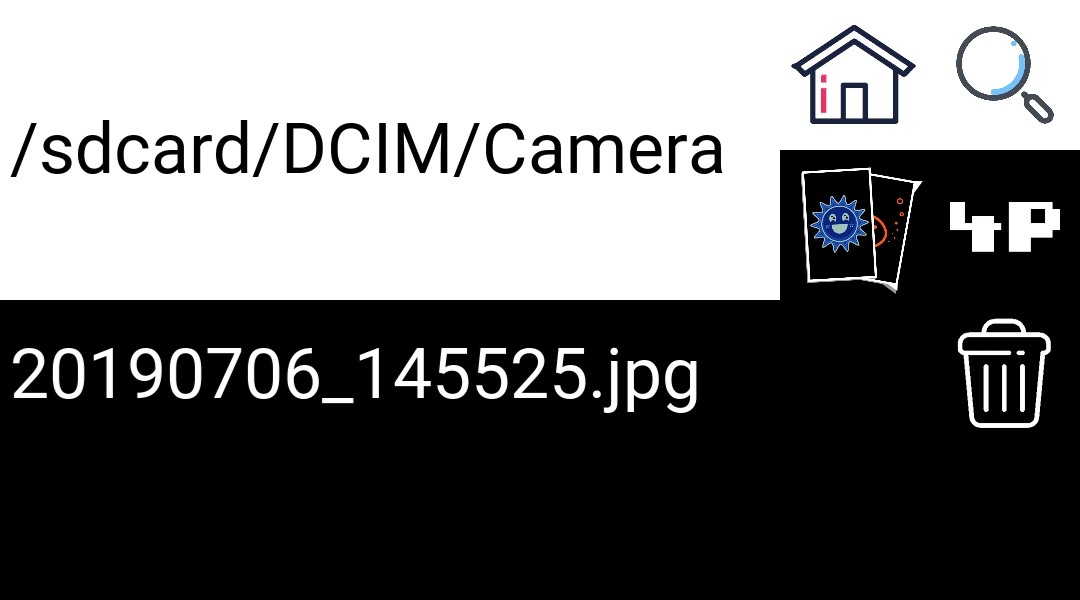 |
If you copied a file by accident you can remove it again by pressing the trash bin icon on the right side of the according file.
2. New File / Folder
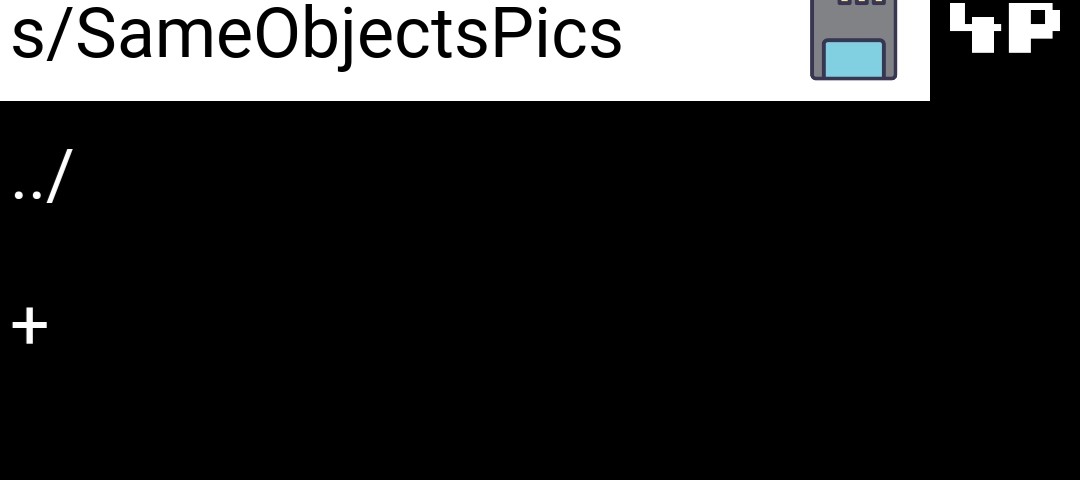
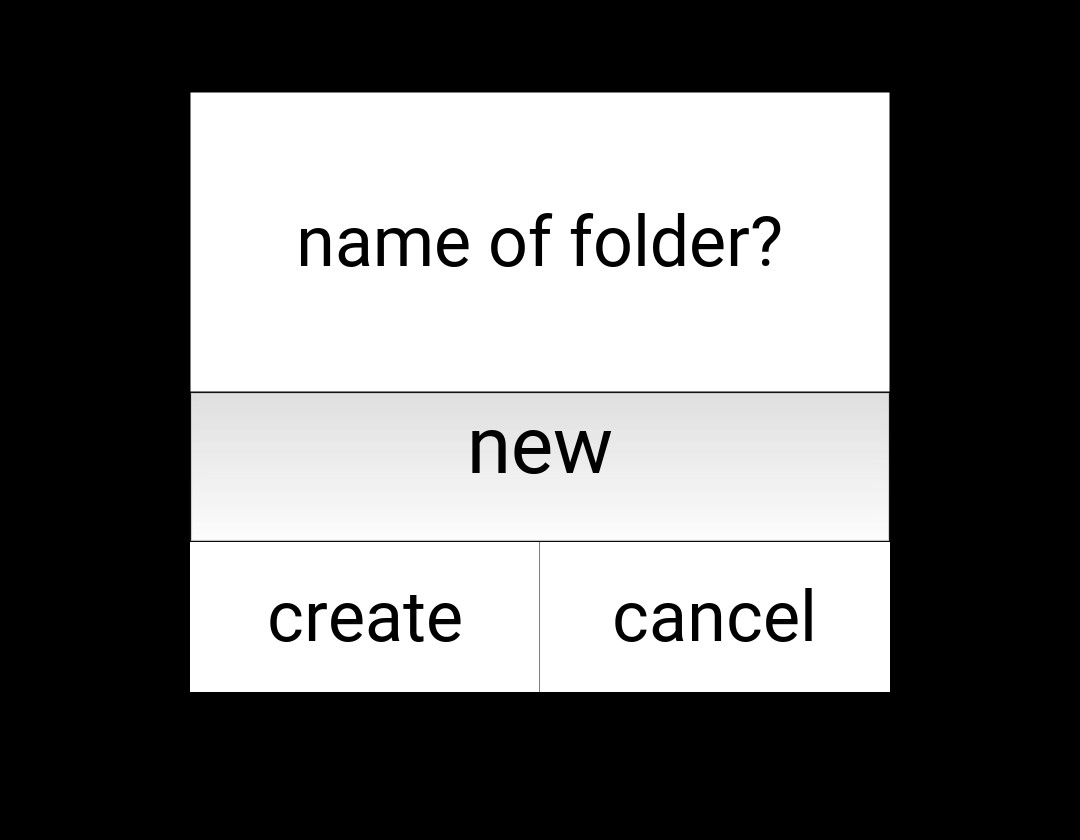
There are predefined places where you can create new subfolders and where you can paste your copied files to (see local files). When available the button for these actions is always displayed at the very bottom of the current folder’s files. The option for creating a new subfolder is displayed by the “+” button (see pictures below). When pressed a textfield pops up where you can type in the name of the new subfolder. Pressing “create” will then create the new subfolder with the name of your choice.
   |
Into these created subfolders you can copy your files. When navigating to one of these at the very bottom of the files a button is displayed with name “COPY INTO THIS FOLDER” (see pictures below). Pressing this button results in a textfield to open up. Make sure you take the description into account when chosing a name (see also local files). Press “copy” and the new file will show up in your folder unless the name already exists. In this case nothing happens and the folder will get displayed as it was before.
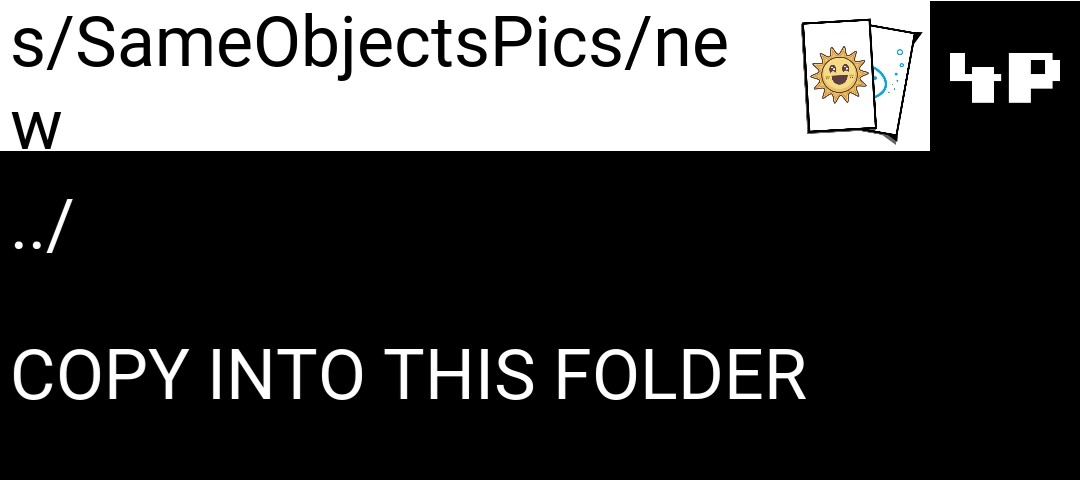 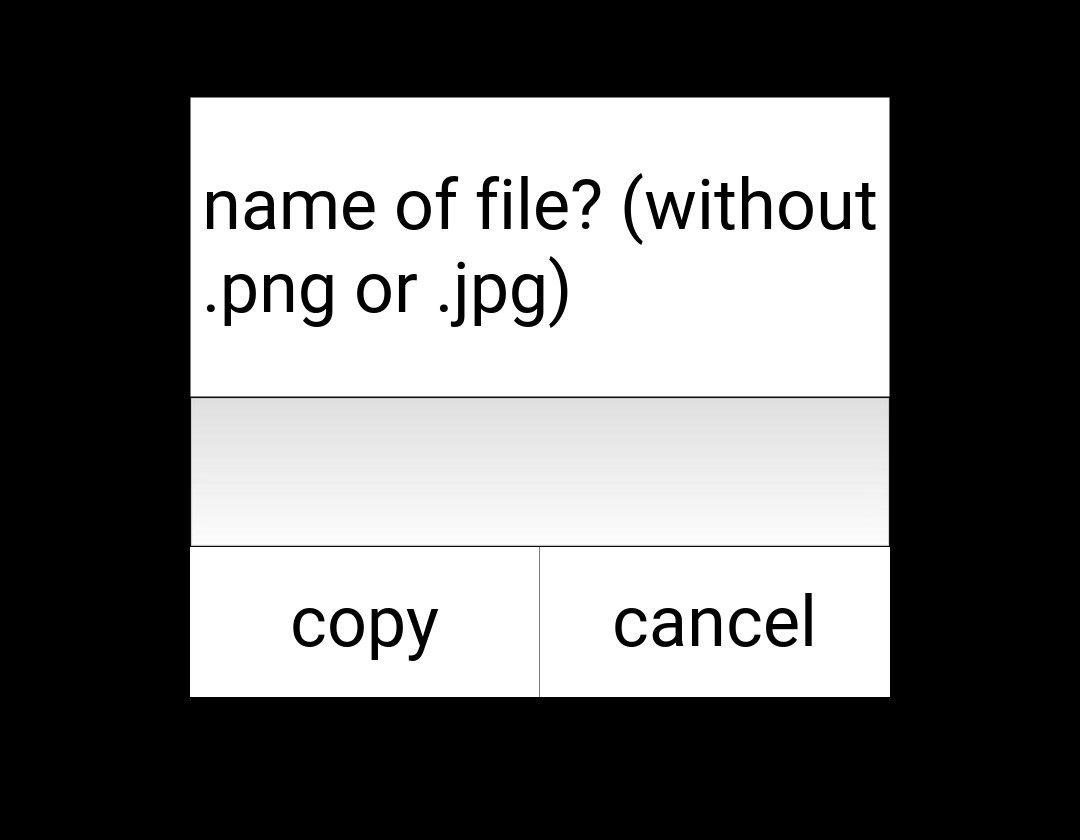 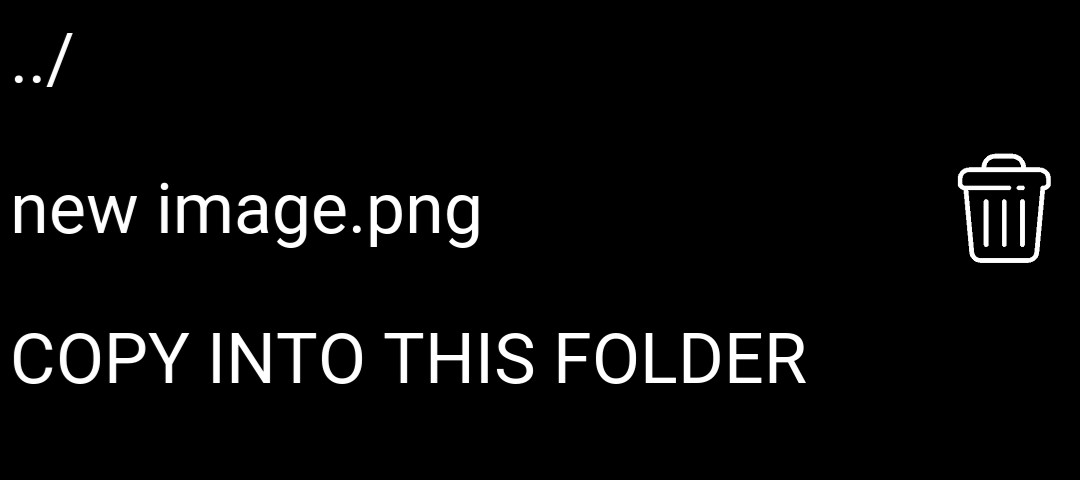 |
The option to name the file you intend to copy into this folder will only pop up when you have only one file currently stored. Otherwise all the files will get copied into this folder with their original name. Any file which would cause a name violation will get ignored in this process.
You can rename files and directories by holding the corresponding button for at least one second. Releasing the button will again open up a textfield where you can type in a new name.
|
|
|